Outlook Shared Mailbox Automation - Route shared mailbox requests and prepare reply drafts
Reliable Workflow builds Microsoft 365 workflows that connect email triage, team routing and reply drafting. This lab shows how to validate an AI routing recommendation and have a person approve draft creation.
Published on Microsoft Tech Community
Who this helps
For customer support and internal service teams that read, categorize and forward requests from a shared Outlook mailbox.
What changes
Use Power Automate to classify and route shared mailbox requests, then create Outlook reply drafts after human approval.
How the work flows.
- 01
Understand the request
AI identifies the request type and key details, then recommends a team.
- 02
Check the recommendation
Rules validate the recommendation and separate uncertain cases for a person to review.
- 03
Record the case and prepare a draft
Save the request details and create an editable Outlook draft after a person approves draft creation.
- 04
Review before sending
A person checks and edits the draft. The lab does not send replies automatically.
Shared mailbox automation pilot
Start with one Outlook shared mailbox and one recurring type of request. Use the pilot results to decide whether to roll out the workflow to your team.
- Pilot scope
- Classify incoming requests, record them in SharePoint and suggest a team using agreed routing rules. Power Automate creates an editable Outlook draft after a reviewer approves the team recommendation. Your team reviews and sends the reply.
- What you prepare
- Identify a mailbox owner and reviewer. Provide approved sample emails with the expected category and team for each, plus your routing rules and exceptions. Before setup, we agree on data handling and access to your Microsoft 365 test environment.
- Deliverables
- A working Power Automate pilot, a SharePoint case register, documented routing and exception rules, a test report, and a handover checklist for operating the workflow and resolving exceptions.
- Success criteria
- Agree on pass criteria before setup. Use samples held back from setup to check whether the category and team are both correct, exceptions reach manual review, and only approved cases get drafts. Compare hands-on time per case with your current process if a baseline is available.
Implementation and evidence
A hands-on lab published on Microsoft Tech Community. It uses synthetic email data to demonstrate case records and editable Outlook drafts.
This is a build tutorial, not a customer deployment. A real implementation needs request categories, team routing, response rules and access permissions agreed with your team.
Tools used: Outlook, Power Automate, SharePoint, Microsoft Foundry
Verified lab results
We tested the workflow with synthetic emails in August 2026.
| Test scenario | Observed result |
|---|---|
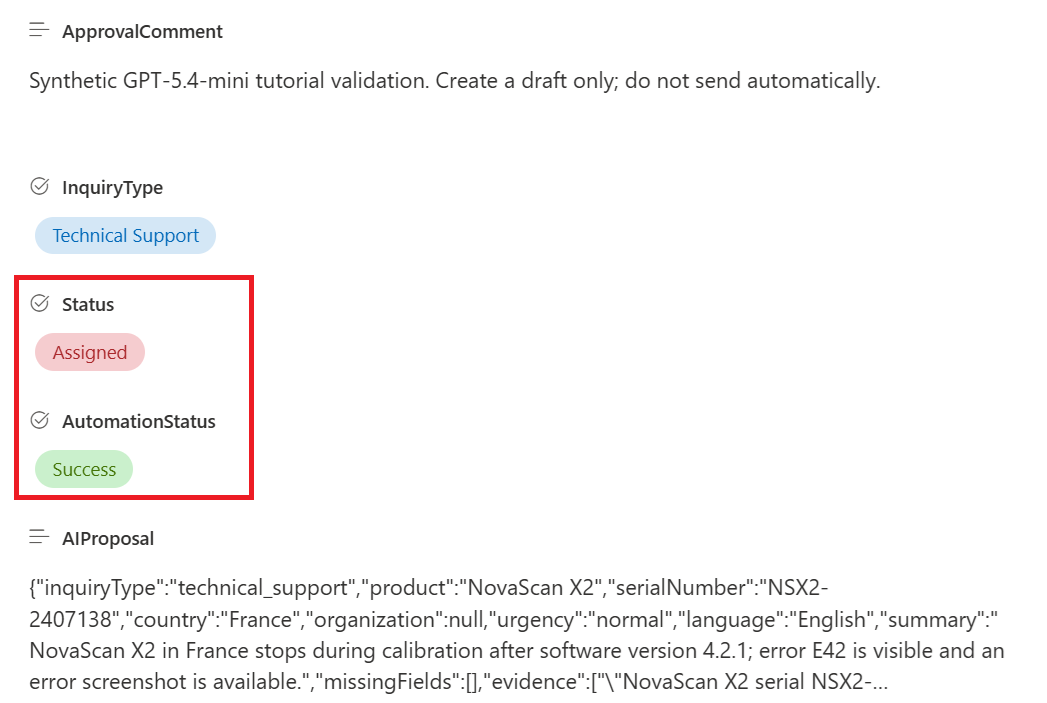
| Draft creation after approval | When the reviewer approved the team recommendation, Outlook saved an editable draft. No reply was sent. |
| Manual review | A low-confidence recommendation was recorded as Needs Review in SharePoint. The workflow requested no approval and created no draft. |
| Duplicate prevention | When a completed run was replayed with the same message ID, the duplicate check stopped the replay. SharePoint kept one case record. |
Does this sound like your work?
Tell us how the work happens today. We’ll identify what can be automated and a practical place to start.
Book a 30-minute callNo preparation needed.
Email us about your workflow